AI beside your work, without the context switch.

SideNote Pro is a native Windows 11 AI assistant that stays docked beside the app you are already using. Press Ctrl+Shift+Space to summon it, ask a question or work with text, screenshots, documents or local folders, then press Esc and carry on where you were.

Use your own AI provider or a local model. No bundled AI plan.

Q3 Review.docx

Quarterly performance

Marketing spend rose across every paid channel this quarter, with the steepest increases in search and paid social.

Customer acquisition costs increased 23% this quarter despite relatively stable conversion rates.

Retention held at 91% and average order value moved up slightly against the prior period.

Paid search remains the largest single line, followed by social and affiliate.

Blended CAC is now £68, up from £55 in the second quarter.

Affiliate revenue grew 8%, though it remains a small share of the total.

Organic traffic was flat, with no material change in ranking positions.

The team is reviewing channel mix ahead of the Q4 budget cycle.

SideNote Pro
Customer acquisition costs increased 23%…Explain this
It means the company is spending more to acquire each new customer, even though roughly the same percentage of visitors are converting.
Native for Windows 11
The workflow

It lives at the edge, not at the centre.

The cost of most AI tools is not the subscription, it is the context switch. Each question means leaving your work, copying context into another window and carrying the answer back. SideNote Pro comes to the application you are in instead, and goes back to the edge of the screen when you are done.

Summon it

Press Ctrl+Shift+Space from anywhere in Windows. No window to find, no tab to load.

Ask

Type, attach a document, capture part of the screen, or act on text you have selected in another application.

Retract it

Press Esc and it folds into a slim leash on the edge of the display, keeping your thread and your place.

Carry on

It is still there when you need it again, at the size and position you left it.

The default shortcut is Ctrl+Shift+Space and can be changed. The panel can float, snap to an edge, stay above other windows, or live in the right-edge drawer. See the Windows sidebar.

Beyond documents

Beside the tools you already use.

Keep an expert AI assistant beside any tool you use, without navigating away from your work or breaking your focus.
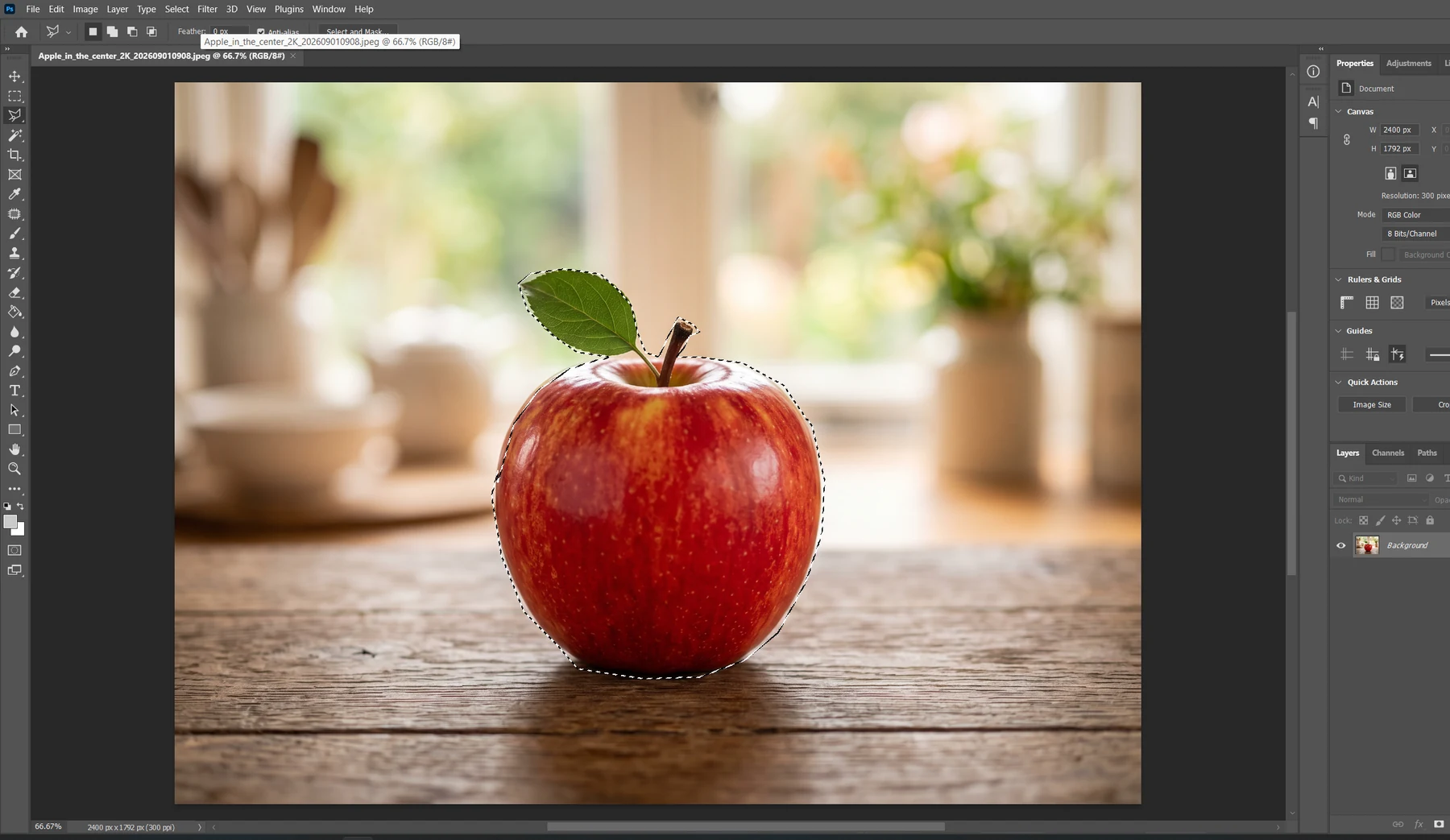
SideNote Pro
How do I invert this selection in Photoshop?
Press Ctrl + Shift + I, or choose Select Inverse. This swaps the selected and unselected areas.
Native for Windows 11
Bring your own key

You choose the AI. We provide the Windows workflow.

Bring Your Own Key (BYOK) means you connect SideNote Pro to an AI provider using your own API credentials rather than buying bundled AI usage from us. The application ships with no AI credentials of its own: you configure a provider profile, and requests go from your machine straight to the endpoint you set. BediniLabs does not relay ordinary AI prompts.

  1. OpenAIUse your own secret key against https://api.openai.com/v1.
  2. Ollama or LM StudioPoint it at a local endpoint and inference runs on your own hardware, so that request does not leave the machine.
  3. Any compatible endpointConfigure another OpenAI-compatible service by hand. Compatibility varies between services, so what a given provider supports is worth checking.

Keep several provider profiles and switch between them as the task changes.

Choose a provider

What the licence covers

  • The SideNote Pro Windows application, bought once
  • Every feature, with no tiers
  • No subscription and no account

What it does not cover

  • AI provider usage, which you pay for separately
  • Credits, tokens or bundled inference of any kind
  • Your provider’s own terms and policies
More than typed prompts

Ask about what you are actually working on.

Most questions are about something already in front of you: a document, an error on screen, a paragraph you just wrote, a folder full of files.

Selected text, anywhere

Summarize, rewrite, explain or translate a selection in any Windows application with a shortcut, or define your own actions.

Selected-text actions

Documents

Attach PDF, DOCX, TXT and Markdown files. Text is extracted on your machine; the original file is never uploaded.

Document input

Screenshots and images

Capture a region, a window, a screen or the whole desktop, paste from the clipboard, or drag an image in.

Screenshots and images

A local folder

Index a folder you choose and ask questions about what is in it, with sources you can open.

Local folder context

Your own history

Threads, search, pins and retention, stored locally. Markdown export for a thread, PDF export for a response.

Conversation history

The model you pick

Model selection per provider profile, plus an optional reasoning effort level where your model supports one.

Model and reasoning controls

Local folder context

Point it at a folder and ask.

  1. You choose the folderNothing is discovered, crawled or watched in the background.
  2. Indexing stays localSideNote Pro indexes it on your machine. No AI provider is contacted while indexing, and no embeddings or vector database are involved.
  3. Only excerpts are sentLocal search picks the passages that matter, and only those excerpts go into the request.
  4. Sources stay attachedThe answer keeps a list naming the files, and PDF pages, it drew on, so you can open them.

A large folder never becomes a large prompt.

Useful on a codebase you did not write, a folder of specifications, or research notes spread across a dozen documents.

Explore local folder context
Illustration of a small number of relevant passages being selected from a larger set of local files.
Model control

Use the model the task actually needs.

The habit that costs the most is running everything through the largest available model. SideNote Pro keeps the choice where you can reach it.

Quick rewrite? Prefer speed.

  • Rewriting a paragraph
  • Summarizing an email
  • Translating ordinary text
  • Ten alternative headings

There is no hidden structure to work out. A smaller model answers just as well, sooner and cheaper.

Hard analysis? Add reasoning.

  • Reviewing a design for failure modes
  • Debugging from logs and code
  • Finding contradictions in requirements
  • Surfacing unstated assumptions

Here the answer depends on connecting several things correctly, and depth earns its cost.

Set the model per provider profile, and optionally send a reasoning effort level where your model supports one. How to choose a model and when depth is worth the wait.

Privacy

Three parties, and we will name all three.

SideNote Pro does not receive your conversation. Your settings, history, folder indexes and usage figures stay on your machine. The AI provider you configured does receive the requests you submit, under its own privacy, retention and billing policies, so choosing a provider you trust is part of using SideNote Pro. The BediniLabs licensing service handles activation and entitlement, not AI prompts.

We will not tell you that everything stays on your computer, because that is only true when you run a local model.

Read the privacy architecture
  • No SideNote Pro account
  • No telemetry or product analytics
  • No advertising
  • No SideNote Pro cloud history
  • No cloud synchronisation
  • No background screen or clipboard monitoring
  • Settings and history stay on your device
  • API keys protected with Windows DPAPI
  • Folder indexing and search run locally
  • Messages are sent only when you submit them
  • Screenshots exist only when you start one
  • Content goes to the AI provider you configured
Pricing

One payment for the app. Your own account for the AI.

Two separate things, and it is worth being unambiguous about which is which.

SideNote Pro licence$49 once

A one-time purchase for the Windows application, after a 30-day free trial. No SideNote Pro subscription.

  • Every feature, with no tiers
  • 1 user, 2 devices, no account and no sign-up
  • Conversations, export and settings stay available after the trial ends
See pricing
AI provider usagePaid to your provider

Not included in the licence, and never will be while SideNote Pro is bring-your-own-key. You pay your chosen provider directly, for what you use, under their pricing.

  • No bundled credits, tokens or inference
  • No markup, because there is nothing in between
  • Nothing at all per request if you run a local model
  • Change or cancel with your provider at any time, without touching your SideNote Pro licence

Team and volume licensing, the full comparison and the pricing FAQ are on the pricing page. Not sure whether metered API billing suits how you work? BYOK explained covers both sides, and reducing API costs covers keeping it predictable.

FAQ

The questions people ask first.

The rest, on providers, privacy, documents, folders, export and pricing, are on the full FAQ page.

What is SideNote Pro?
SideNote Pro is a docked BYOK AI tool for Windows. Bring Your Own Key (BYOK) means you connect it to an AI provider using your own API credentials rather than buying bundled AI usage from us, so you choose the provider and the model. It can be summoned from anywhere with a global shortcut, kept above other windows, docked to the right edge of the screen, or retracted into a slim drawer leash.
What does BYOK mean?
Bring your own key means the application uses AI credentials you supply, for a provider you chose, rather than bundling AI usage into its own licence. SideNote Pro ships with no AI credentials and no endpoint of its own, so requests go from your machine directly to the provider you configure.
Does SideNote Pro include AI usage?
No. The licence covers the Windows application only. AI usage is billed by your provider, under that provider's own pricing and terms, for what you actually use.
How much does SideNote Pro cost?
$49, once, for an individual licence covering the Windows application on 2 devices. Team and volume pricing is on the pricing page.
How long is the free trial?
30 days. It starts only after you confirm on the first-use screen, and it is authorized by the licensing service rather than issued locally, so starting it needs an internet connection. The full assistant is available during the trial.
Where are conversations stored?
Locally, in a conversation archive under %LOCALAPPDATA%\SideNote Pro\. History can be disabled, given a retention period, encrypted for your Windows account, or deleted entirely.
Are my conversations uploaded to SideNote Pro servers?
No. There is no SideNote Pro conversation backend, no cloud storage of your threads and no synchronisation. Conversations are stored on your device. The requests you submit go to the AI provider you configured, and that provider applies its own policies.
Which versions of Windows does SideNote Pro support?
SideNote Pro is built for Windows 11 x64 PCs and works across standard Windows 11 editions, including Home, Pro, Enterprise, and Education. On managed business or school devices, administrator policies may restrict installation or certain Windows features.

Your provider. Your models.
Beside your work.

Download from the Microsoft Store